Extending the life of a laptop is not about one fix, it is about consistent habits across physical care, battery optimisation, software management, cleaning routines, and safe usage practices. Most laptops realistically last 3 to 5 years under normal workloads (HP lifecycle guidance and Microsoft performance benchmarks), but with proper care they can go beyond that without major performance loss.
This guide explains how to protect your device using protective gear like sleeves and padded cases, maintain airflow and cooling systems, prevent overheating issues up to 85-90°C thresholds, and keep your system running smoothly through Windows updates, antivirus protection, and storage upgrades like SSD and RAM expansion. It also covers real-world problems like battery degradation, screen damage, dust buildup, and system crashes, and when professional servicing becomes necessary.
Table of Contents
Why Laptop Lifespan Actually Matters
Most users underestimate how much habits affect hardware. A laptop is not disposable tech. According to HP and Microsoft lifecycle data, consistent care can improve usability by 30-50% over time, especially for students and professionals relying on stable performance.
Poor habits lead to:
- Early hardware degradation
- Frequent system crashes
- Reduced battery health
- Faster e-waste generation
- Loss of productivity during critical work periods
Sustainable usage is not just about saving money, it directly impacts workflow reliability and device longevity.
Physical Care: Protecting the Hardware
Investing in Proper Protection
A large percentage of laptop damage comes from transport, not usage.
Essential protection setup:
| Item | Purpose | Benefit |
|---|---|---|
| Laptop sleeve | Prevents scratches | Reduces surface damage |
| Padded backpack | Shock absorption | Protects from drops |
| Dedicated compartment | Safe carrying | Prevents pressure damage |
| Hard shell case | Structural integrity | Protects chassis |
Using cushioning accessories, proper laptop compartments, and avoiding loose carrying is essential for preventing accidental damage during travel.
Keep Things Clean: The Silent Performance Killer
Dust is one of the most underestimated enemies of laptops.
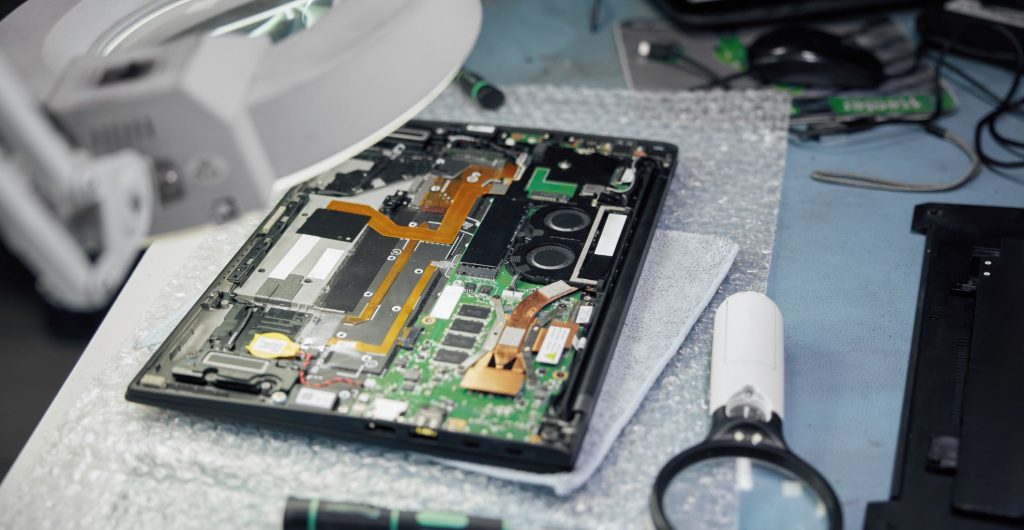
Over time, dust, lint, and debris accumulate inside vents and fans causing overheating and performance issues.
Best practices:
- Use compressed air for vents every 2-3 months
- Clean keyboard with lint-free cloth
- Avoid liquid cleaners near ports
- Perform internal clean-up at a licensed service shop annually
Microsoft and HP both highlight that blocked airflow can reduce CPU efficiency by up to 20% under load conditions.
Handle with Care: Everyday Usage Mistakes
Most physical damage happens during normal use, not accidents.
Avoid:
- Eating near keyboard (crumb buildup causes internal circuit damage)
- Placing heavy books on laptop lid
- Using laptop on beds or sofas (causes heat trap)
- Exposing device to spills and moisture
Even small pressure on the chassis or screen can lead to long-term deformation and internal stress.
Use Battery Optimisation Features
Battery degradation is unavoidable, but it can be slowed.
Modern systems like ASUS and Windows include smart tools:
| Feature | Function |
|---|---|
| Battery saver mode | Reduces background usage |
| Smart charging | Limits overcharging |
| Performance mode control | Balances power usage |
| MyASUS battery optimisation | Extends battery lifespan |
Keeping charge between 20% and 80% is widely recommended by battery manufacturers like Panasonic and Dell battery labs.
Take Care of the Screen
Screens, especially OLED displays, are highly sensitive.
Risks include:
- Burn-in
- Micro scratches
- Pressure damage
Best practices:
- Clean using microfibre cloth only
- Avoid strong pressure on panel
- Use dark mode and screensavers
- Enable features like ASUS OLED Care (for supported devices)
OLED panels like those in the Vivobook S14 require extra caution due to organic pixel sensitivity.
Keep Airflow Flowing (Critical for Performance)
Heat is the fastest way to kill performance.
Do not block vents:
- Avoid beds and couches
- Always use flat surfaces
- Consider a laptop stand or cooling pad
Overheating Risk Table
| Condition | Temperature Range | Risk Level |
|---|---|---|
| Normal use | 40-70°C | Safe |
| Heavy gaming | 75-85°C | Moderate |
| Poor airflow | 85-95°C | Dangerous |
Intel and HP thermal guidelines state that sustained temperatures above 90°C can permanently reduce CPU lifespan.
Keep Software Updated
Software is as important as hardware.
Ignoring updates leads to:
- Security vulnerabilities
- Slow performance
- App crashes
Keep updated:
- Windows OS
- Drivers
- Applications
- Security patches (Microsoft Defender recommendations)
Microsoft data shows updated systems boot faster and crash less frequently due to optimized memory management.
Use Antivirus Software
Malware silently destroys performance.
Use trusted antivirus software with real-time protection:
- Regular system scans
- Web protection
- Firewall monitoring
Windows Defender is now considered strong enough for most users if kept updated.
Storage and Memory Upgrades
Upgrading hardware extends usable life significantly.
| Upgrade | Impact |
|---|---|
| SSD upgrade | Faster boot times |
| RAM increase (8GB → 16GB) | Better multitasking |
| External storage | Reduces system strain |
Upgrades reduce system bottlenecks, especially in older HP and Dell laptops running Windows 11.
How to Fix Overheating Issues
Common causes:
- Dust buildup in fans
- Faulty thermal paste
- Heavy multitasking
Solutions:
- Clean vents using compressed air
- Update BIOS and drivers
- Use cooling pad
- Monitor temps using tools like HWMonitor or Core Temp
If temperatures stay above 90°C consistently, professional servicing is required.
How to Make a Laptop Last Longer Through Smart Usage
Daily habits matter more than upgrades.
- Avoid full battery drain cycles
- Use surge protectors
- Close heavy apps when not needed
- Use Sleep mode for short breaks
- Avoid constant max performance mode
These small actions reduce hardware strain and power fluctuations significantly.
Protect from Environmental Damage
Environmental factors often go unnoticed.
Avoid:
- High humidity environments
- Direct sunlight exposure
- Hot cars
- Dust-heavy construction areas
Moisture and heat cause short circuits and battery damage, especially in lithium-ion cells.
Signs Your Laptop Needs Attention
Watch for:
- Loud fan noise
- Slow startup
- Battery draining fast
- Random shutdowns
- Blue screen errors
These are early indicators of system wear and tear.
When to Seek Professional Help
If issues persist beyond basic cleaning or updates, do not delay servicing.
Recommended interval:
- Every 18 to 24 months for deep cleaning and diagnostics
Professional checks include:
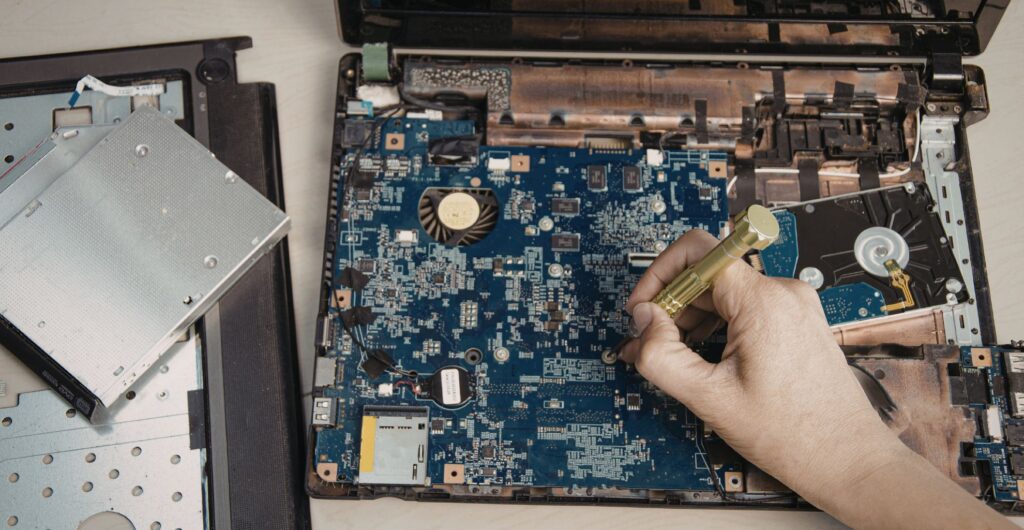
- Internal dust removal
- Thermal paste replacement
- Battery health diagnostics
- Hardware stress testing
Phone Doctor UK regularly handles these cases where early servicing prevents full motherboard failure.
HP Chromebooks as a Durable Alternative
For light users, HP Chromebooks offer:
- Longer battery life
- Fewer malware risks
- Cloud-based storage efficiency
- Faster updates
They are ideal for education and browsing but not heavy workloads.
For Years Ahead: Building Better Habits
A laptop is not just hardware, it is a daily tool. Long-term reliability depends on consistent habits like cleaning, updates, airflow control, and careful handling.
If you treat it like a long-term investment, it will behave like one.
Final Thoughts
Extending laptop life is not complicated. It is discipline. Most failures we see at Phone Doctor UK are preventable. Heat, dust, poor charging habits, and neglect are the real killers, not age.
If you fix those, your laptop will easily outperform its expected lifespan.