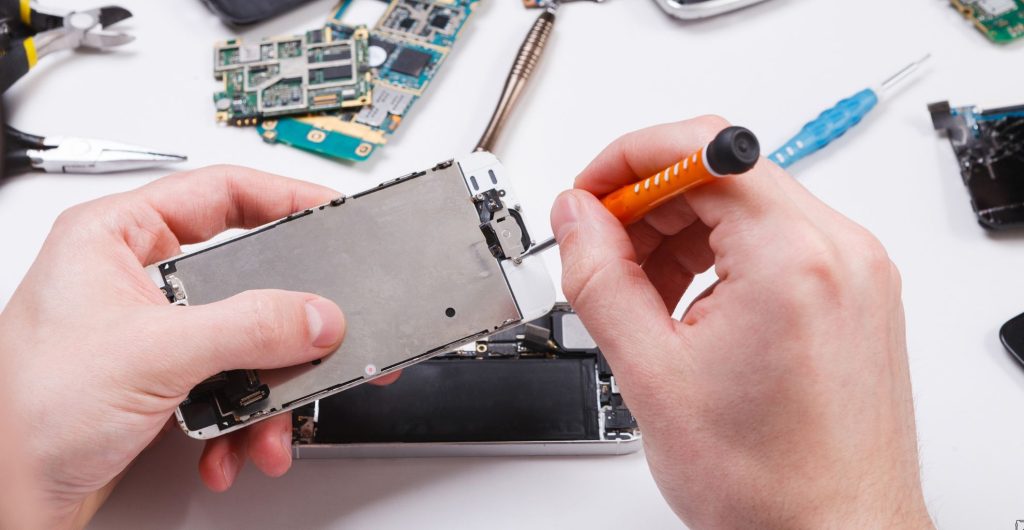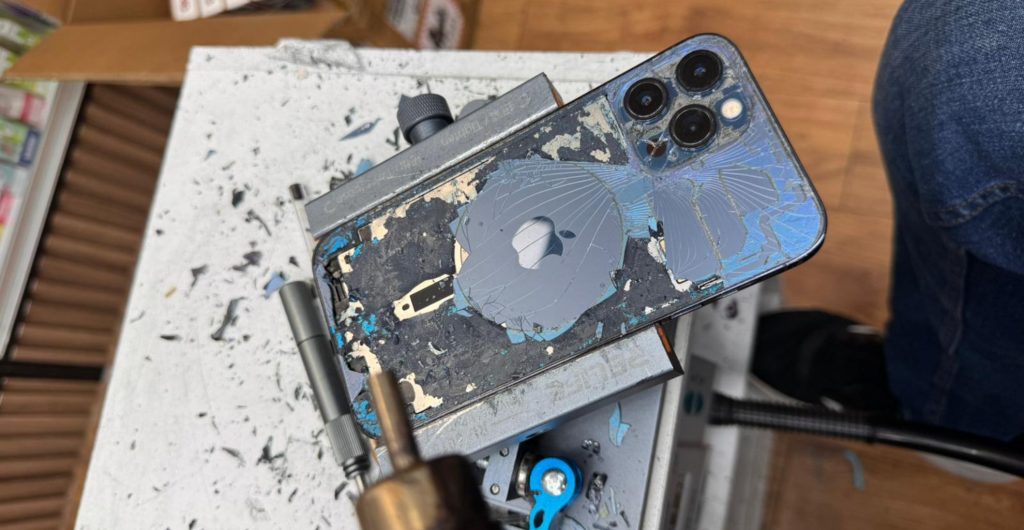
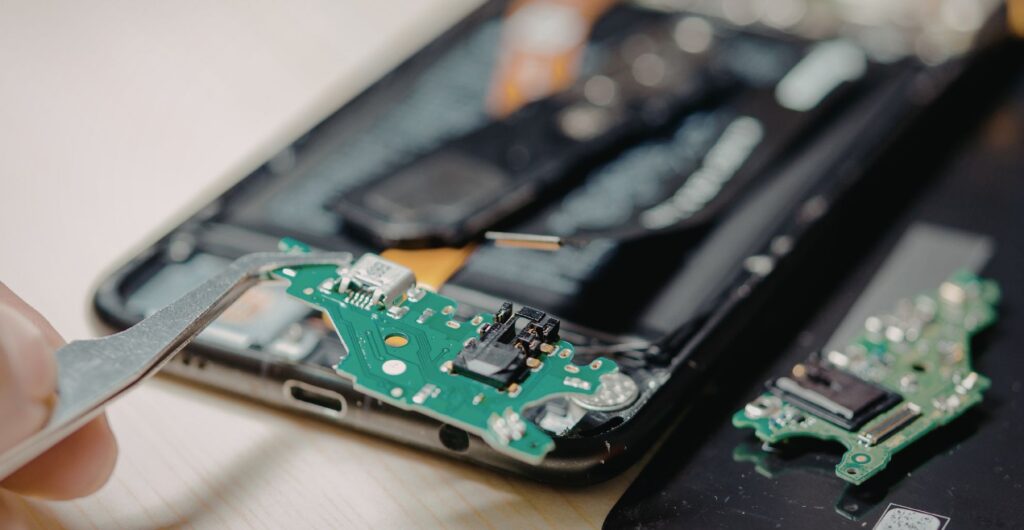
Before you hand over your device for repair, understand this clearly: most people don’t lose their data because of bad technicians, they lose it because they never had a proper backup. Phones get damaged, screens break, batteries fail, and sometimes repairs require resets or part replacements. Without proper backing up, your pictures, contacts, messages, and documents can be permanently lost. A solid backup plan ensures your precious information stays in a safe place, even in cases of accidents, malware, or device failure. After repair, restoring your files, apps, and settings should be smooth and stress-free.
This guide walks you through everything, from prevention to recovery, so your memories, videos, and notes are never at risk again.
Table of Contents
Why Data Backup & Recovery Is Not Optional Anymore
Let’s be blunt. If you’re not backing up your phone regularly, you’re gambling with your life’s digital record.
People come in daily with lost, stolen, or completely damaged devices thinking recovery is guaranteed. It’s not. Once storage chips fail or boards get affected, even advanced recovery can fail.
Think about what’s actually inside your phone:
| Type of Data | Why It Matters |
|---|---|
| Pictures & videos | Irreplaceable personal memories |
| Contacts | Business and personal communication |
| Messages & notes | Important conversations and records |
| Documents & files | Work, IDs, contracts |
A repair might fix hardware, but it cannot magically bring back data that was never saved.
Make A Backup Plan That Actually Works
If your plan is “I’ll do it later,” you already lost.
You need a robust backup plan that protects confidential data and syncs everything automatically.
Here’s what a proper setup looks like:
| Backup Method | Tools | Use Case |
|---|---|---|
| Cloud Sync | Google Drive, iCloud | Daily automatic backups |
| External Storage | Hard drive | Extra safety layer |
| Manual Backup | Computer transfer | Full control over files |
Your contacts, photos, and even calendar should be synced so that during the repair process, your data is not at risk.
Why Backing Up Matters Before Repairs
Here’s the reality most people don’t want to hear:
During diagnostics, a part issue might require resetting the phone. Sometimes a replacement device is needed. Sometimes storage fails.
That leads to:
- Complete data loss
- No access to memories from years
- Privacy exposure if data isn’t secured properly
A backup gives you:
- Peace of mind
- Fast restore
- Protection of sensitive data
- Zero dependency on recovery success
Quick Checklist Before You Drop Off Your Phone
Do this or don’t complain later:
- Back up to cloud (iCloud or Google)
- Save a copy on a computer
- Verify backup completed
- Charge your phone
- Save passwords in a password manager
- Log out of banking & work accounts
This takes 15 minutes. Losing your data costs years.
Cloud Backup (Recommended)
The easiest and most reliable method.
A cloud backup is:
- Automatic
- Secure
- Easy to restore
How it works:
- On iPhone: iCloud → Settings → Back Up Now
- On Android: Google Drive → Backup → Enable
Make sure you’re on Wi-Fi and not low on storage.
Cloud saves you from total device failure, not just repair risks.
Local Backup (Safer for Sensitive Data)
If you deal with private files or business data, cloud alone is not enough.
Use:
- iPhone → iTunes / Finder
- Android → PC file transfer or manufacturer tools
This is ideal for:
- Business users
- Customers with sensitive data
- Full control over Documents and downloads
Use a USB cable and store it on a secure system.
How to Verify Your Backup Actually Worked
Most backups fail quietly.
Common reasons:
- Low storage
- Bad Wi-Fi
- Account issues
Check this:
| Platform | What to Check |
|---|---|
| iPhone | Last successful backup in iCloud settings |
| Android | Google Backup status |
| Computer | Backup timestamp |
If there’s no recent date, your backup is useless.
Privacy: Can Technicians Access Your Personal Data?
Let’s be honest. If your device is unlocked, your personal data is technically accessible.
A professional shop will never misuse it, but you still need precautions:
- Use passcode protection
- Disable lock screen notifications
- Log out of sensitive accounts
For major repairs, a reset is safer.
After the Repair: How to Restore Your Data
Once your device is repaired or replaced, restoring is simple:
- Sign in to iCloud or Google
- Select your saved backup
- Start restore
Everything comes back:
- Apps
- Settings
- Files
If done right, the transition feels stress-free.
Tips for Individuals and Repair Shops
For Phone Owners
Your phone may be damaged but your data shouldn’t be.
- Protect precious photos
- Secure personal contacts
- Save work documents
Even a broken screen repair can turn into data loss if ignored.
For Repair Technicians
This is where most shops fail.
- Never assume data safety
- Always warn about data loss
- Use proper repair workflow
| Good Practice | Why It Matters |
|---|---|
| Written disclaimers | Avoid disputes |
| Backup guidance | Builds trust |
| No unauthorized access | Prevents privacy issues |
Always Back Up Your Data First
Use both:
- Cloud backup
- Local backup
Because:
- Cloud = convenience
- Local = control
Together, they give full protection even in total device failure.
Double-Check What Actually Gets Backed Up
Not everything is automatic.
You must confirm:
- Photos & videos
- Contacts
- WhatsApp chat history
- Notes and documents
Some apps need manual backup. Don’t assume.
Log Out of Accounts and Disable Locks
Before repair:
- Sign out of Apple ID / Google account
- Disable Find My iPhone / FRP
- Remove screen locks
This avoids repair delays and device lock issues.
Remove Sensitive Data (Optional but Smart)
For high-risk repairs like motherboard work:
- Delete banking apps
- Clear saved passwords
- Remove private files
Or do a full factory reset after backup.
Communicate Clearly With the Repair Shop
Ask directly:
- Will there be a reset?
- Any chance of data loss?
- Is this a high-risk repair?
Good shops will never promise 100% data safety in cases like water damage.
Final Thoughts
A device can be fixed. Your photos, documents, and contacts often cannot.
Whether it’s a broken screen, battery issue, or full diagnostic service, repair preparation is everything.
If you take one thing from this:
Back up your data before anything happens.
Because when things go wrong, and they will, your data protection is the only thing standing between you and permanent loss of your personal files.